
TL;DR
- Clean it where it is: do the cleanup in the system you use today, before anything moves into the new one.
- Give it a structure: arrange files in a logical way by name, date, month and year, with folders, subfolders and a naming convention.
- Decide what stays: review the content of the files and mark what is still relevant and what needs to be archived.
- Merge and fix the lists: combine the lists, remove the duplicates and match the correct ID to the correct company before the import.
- Write down access: document who needs access to what folders and files, and whether it is read only, edit or view.
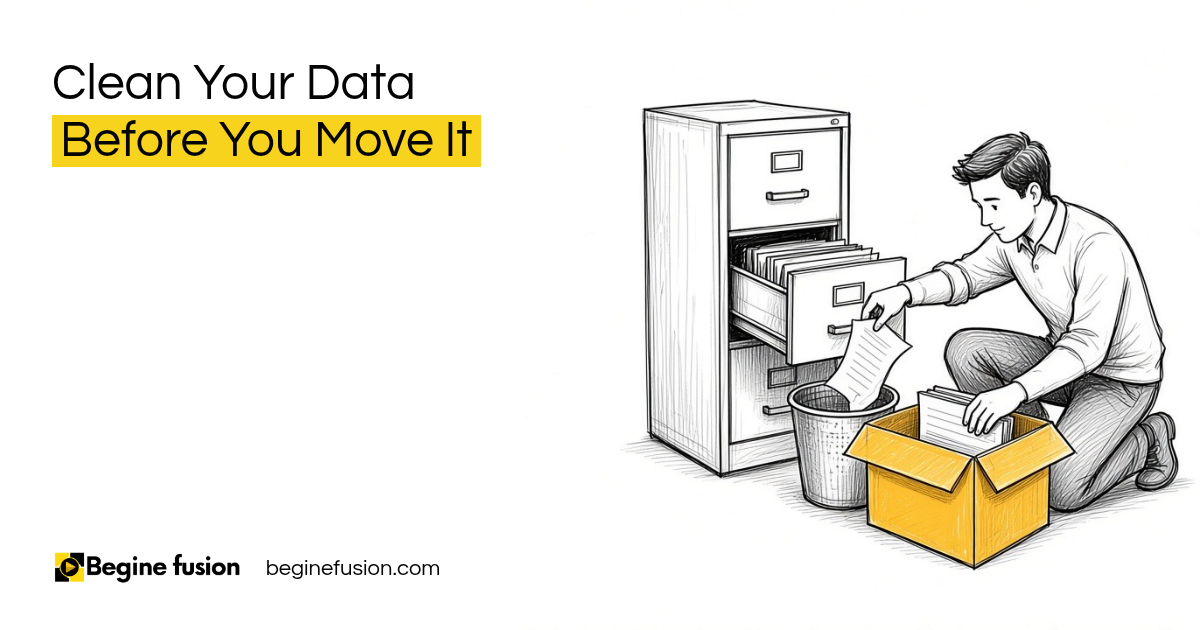
When a team is moving into a new system, somebody always wants to get a head start and begin copying files across. I tell them to hold off on the moving. Clean it up where it is now. The migration happens as part of the project, and we handle that piece when we kick off.
What we want is to have the files cleaned up before we bring them over into the new system.
Clean it up where it is now
The cleanup is the data you have within all those files and folders. Are they arranged in a logical way, like name, date, month and year? What is the structure for all of that?
If the folders today are arranged differently from the way you want them, create a new folder where you are now and arrange things the way they need to be. A folder, then a subfolder, and a naming convention for the different things.

Decide what stays and what gets archived
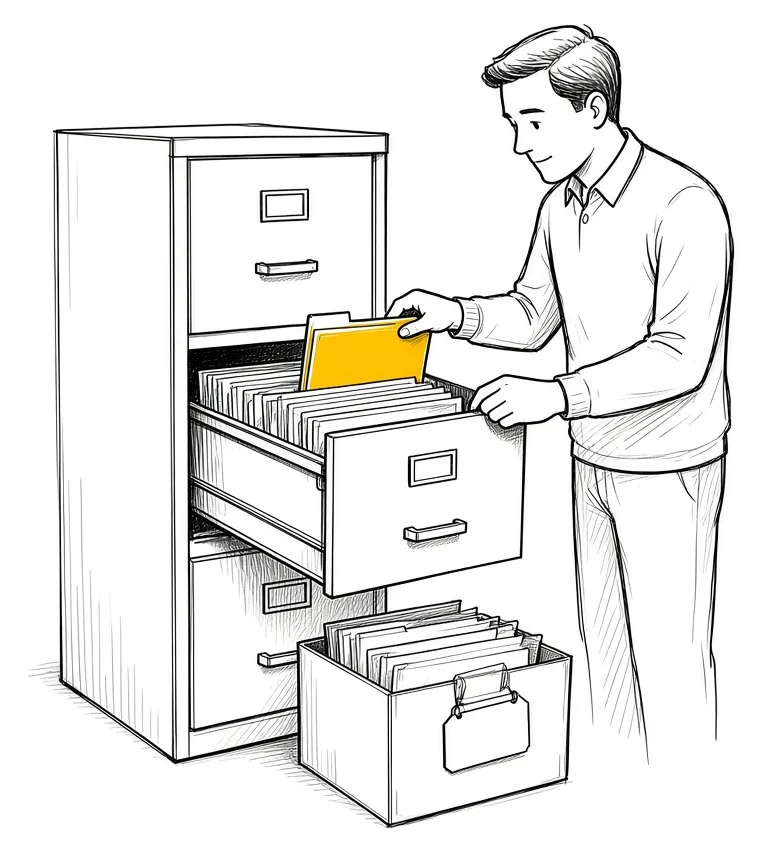
Then look at the content of the files. Are there things that are still relevant? Things that are no longer relevant? Things that need to be archived?
Review everything and make sure that all the data you have is good. Anything you keep is something your team will be looking at in the new system.
Merge the lists and remove the duplicates
Client records work the same way. When the records come from two places, we can do multiple imports. The best route is to merge the two lists and do the cleanup before we import.
If there is updated information in one list that is missing in the other, or data that needs to be changed or corrected, we fix that before we bring it in. That way we are importing clean data into the CRM.
If you need to spend a couple of days going through everything, merging the two files, removing the duplicates and making sure the correct ID goes to the correct company, take that time. By the time we import into the CRM, the data is clean and it does not cause issues inside the CRM. Our guide to CRM data migration covers the import side.
If the records are going into a CRM: Try Zoho CRM.
The migration copies whatever you give it
Copying documents one at a time and uploading them into a folder is the slow way. The migration has a setup wizard that finds the documents and data you have and imports all of it.
So the cleanup you were planning to do while moving things, do it now. The exception is when the documents or data are only a handful of files. That is something separate.

The cleanup matters because of where you end up. When everything we move over is cleaned up, you are inside the new system working, and nobody is trying to figure out what is where.
If the files are moving into a new shared drive: Try Zoho WorkDrive.
Document who needs access to what
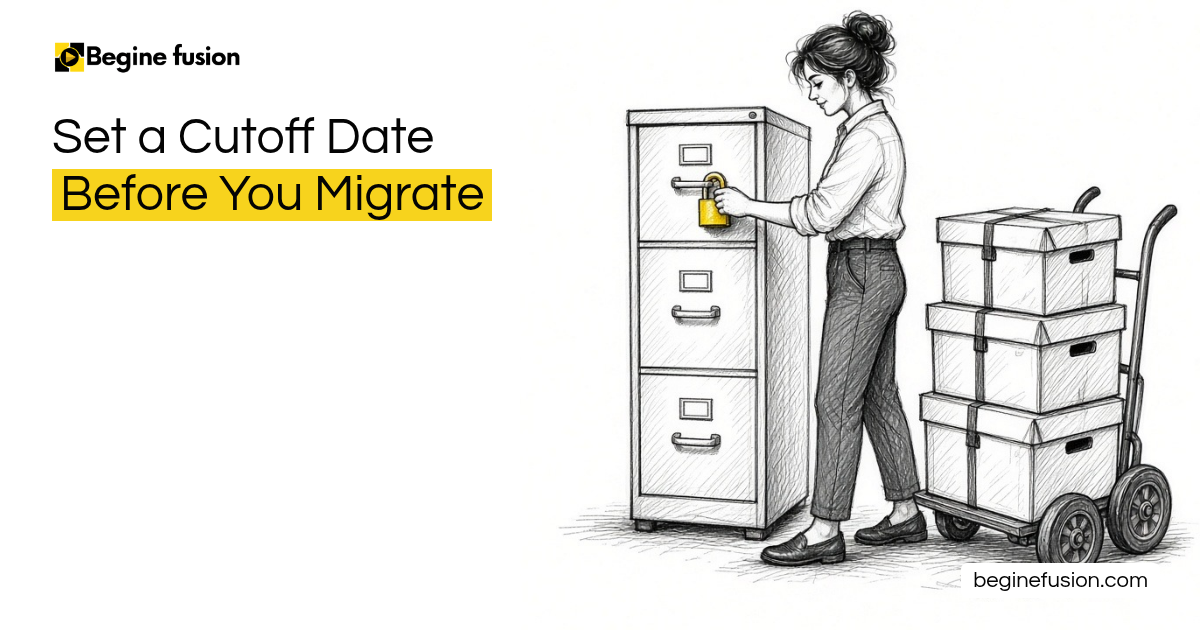
When the cleanup is done, the next requirement is access. Who are the people who need access to what folders and what files? What kind of access do they need: read only, edit or just view?
We document those things before the move, because we don’t want to replicate what we have today in the new system. It has to be cleaned up first. We can work with you on it and offer guidance along the way.

What changes when the data is clean
The team opens the new system and finds files where they expect them, under names that make sense. Each client has one record with the correct ID. Old material is archived. Each person has the access they need. The first weeks go into using the system instead of tidying it.
Takeaways and next steps
- Do the cleanup in the system you use today.
- Set the folder structure and naming convention before the move.
- Mark what is relevant and archive the rest.
- Merge lists, remove duplicates and match IDs before the import.
- Write down who needs access to which folders and files.
Once the records are in, every interaction with a client happens inside the CRM. We also wrote about why the CRM comes before the AI.
Common mistakes before a migration
1. Copying files across by hand ahead of the project.
Why it fails: The mess moves with them, and the migration has to work around it.
Better approach: Clean up where the files are now and let the migration do the move.
2. Importing two lists as they are.
Why it fails: Duplicates and wrong IDs land in the CRM.
Better approach: Merge the lists and fix them before the import.
3. Keeping every old file.
Why it fails: People search through material nobody uses.
Better approach: Review the content and archive what is no longer relevant.
4. Copying the old access setup over.
Why it fails: People keep access they no longer need.
Better approach: Document who needs read only, edit or view access before the move.
Frequently asked questions
Should we clean data before or after a migration?
Before. Clean it where it is now so the migration brings over clean files and records.
Should our team start moving files early?
Hold off. The migration is part of the project and a setup wizard imports the data. Use that time for the cleanup.
What does a data cleanup cover?
Folder structure and naming, what is still relevant, what to archive, merging lists, removing duplicates and correcting IDs.
How long should the cleanup take?
Take the time it needs. A couple of days spent merging and fixing records saves issues inside the CRM later.
When do we decide on access?
Once the cleanup is done and before the move. Document who needs read only, edit or view access to each folder.
Glossary
- Data migration
- Moving files, emails and records from the current system into a new one.
- Naming convention
- The agreed way to name files and folders, such as name, date, month and year.
- Archive
- Files kept for the record but moved out of daily use.
- Duplicate record
- The same client or company entered more than once.
- Access level
- What a person can do with a folder or file: read only, edit or view.

 The Company Vault Checklist: One Folder Every AI Tool Reads
 Minimum Sales System Checklist: Before You Buy AI