
How to Set Up Zoho CRM: The Order That Avoids Rework
Zoho CRM will let you start anywhere. You can create a custom field in the first five minutes, build a workflow rule before you have any users, and import ten thousand records into a structure you have not decided on yet.
That flexibility is the reason most self-configured Zoho accounts get rebuilt. The order below exists because some decisions are cheap to make early and expensive to reverse once data and automation sit on top of them.
Where this sits
This is the Zoho-specific configuration sequence. For the project around it, see the CRM implementation guide. For moving your existing records in, CRM data migration. For what Zoho CRM automates once configured, workflow automation.
TL;DR
- Roles and profiles before users. Roles are the hierarchy, profiles are the permissions. Adding users first means editing every one of them afterwards.
- Fields before data, and lead conversion mapping before either. A lead field with nowhere to land is lost at the moment of conversion, silently.
- Decide the lead-versus-contact line early. In Zoho a lead holds company, person and opportunity in one record, and converting it creates all three.
- Sample data first, real data second. Zoho offers sample data on signup. Use it to test the structure, then remove it before the real import.
- Automation last. Workflow rules built over a structure you are still changing have to be rebuilt with it, and rule limits vary by edition.
- Blueprint only when the process is settled. It enforces a sequence, which is valuable once you are sure of the sequence and obstructive before.
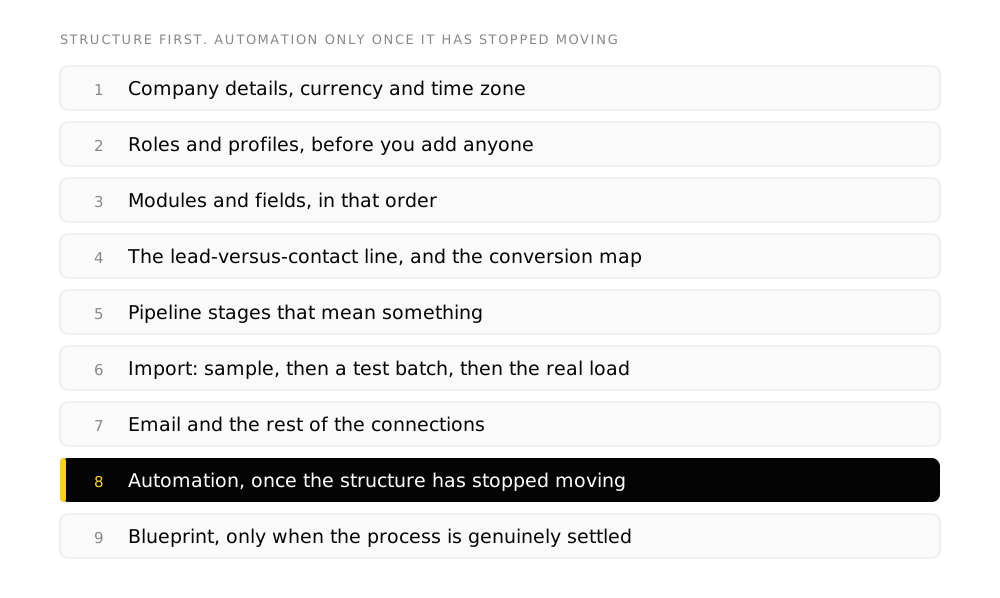
1. Company details, currency and time zone
The first screen, and the one people click through. Currency and time zone are the two that matter, because every date, every reminder and every revenue figure inherits from them, and changing them later means every existing record was recorded under the old setting.
For a Canadian business selling in Canada, set the currency to CAD at the start. Zoho supports multiple currencies, but the base currency is a foundational setting rather than a preference.
2. Roles and profiles, before you add anyone
Zoho separates two things that most people first meet as one, and getting them straight here saves a rebuild later. In Zoho’s own terms, you “set up the organization-wide hierarchy by creating Roles and assigning it to users”, while a “Profile is a collection of permissions that give users access to set of tools and features”.
Who sits above whom. This drives what records a person can see by default: a manager sees their team's records because of the role structure, not because of a permission.
What a person can do: which modules, which fields, whether they can delete, export or administer. Two people with the same role can hold different profiles.
Roles restrict by default. Where teams need to see across the hierarchy, Zoho's data sharing rules grant "uninterrupted access to a record across teams and departments" without flattening the structure.
Build the role hierarchy to match how the business actually works rather than the org chart, and keep profiles few. Three or four profiles covering real jobs is manageable. Eleven, each built for one person, is a permissions model nobody will maintain.
Only then add users, each with a role and a profile.
3. Modules and fields, in that order
Zoho ships with the modules most sales processes need, being Leads, Contacts, Accounts, Deals and Activities, and the temptation is to start adding custom fields immediately.
Do the opposite. Work through the standard fields first: disable what you will not use, reorder what stays into the sequence a person actually fills it in, and only then add custom fields for what is genuinely missing. A form with forty fields, thirty of which are irrelevant, is the most reliable cause of a CRM people fill in badly.
- Disable before you add. Every visible field is a small tax on every record created.
- Group into sections that match the conversation. The order of the form should follow the order somebody learns things in.
- Make mandatory fields genuinely mandatory. A required field somebody cannot answer at the point of entry produces junk values, not data.
- Keep picklist values short and meaningful. Lists grow. A picklist with fourteen values is one nobody will use consistently, and it makes every report worse.
- Add a legacy ID field if you are migrating, so records can be traced back to the old system.
4. Decide the lead-versus-contact line, then map the conversion
This is the Zoho-specific decision that causes the most rework, and it is worth understanding exactly how the product treats it.
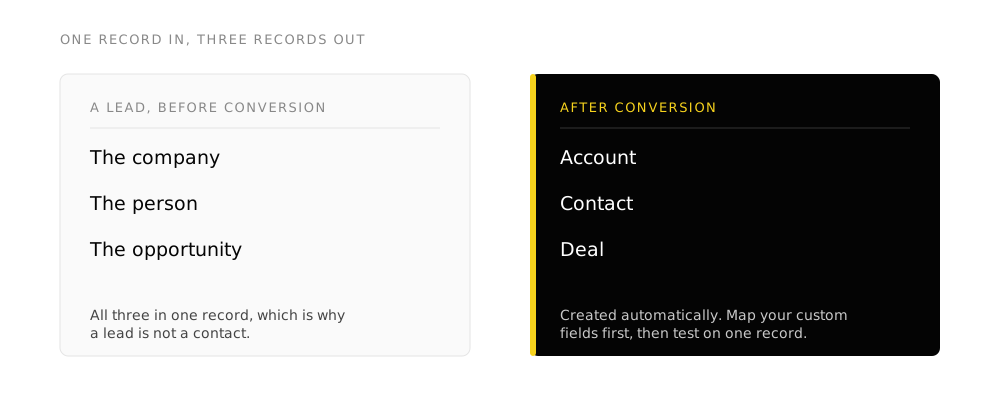
In Zoho’s own documentation, “lead details contain a combination of company (account), person (contact), and business opportunity (deal)”. A lead is all three compressed into one record. When it qualifies, you convert it, and “while converting leads to deals, accounts and contacts are created automatically”. One record becomes three.
Two consequences follow:
Decide what a lead is for your business, in writing. Anyone who has not been qualified? Anyone from an inbound form? Anyone you have not spoken to? There is no correct answer and there is a correct answer for you. Without it, half the team creates contacts and half creates leads, and your pipeline reports are wrong in a way that takes months to notice.
Map every lead field to where it goes on conversion. This is the step that gets missed. A custom field on the lead that has no mapped destination on the contact, account or deal is simply gone the moment the lead converts. Nothing errors. The data was captured, and then it was not there.
Test this before you trust it
Create one lead, fill in every field including the custom ones, convert it, and open all three records that result. Anything you filled in that you cannot now find is a mapping you have not configured. Five minutes here saves discovering it after two thousand conversions.
5. Pipeline stages that mean something
Zoho’s default deal stages are a starting point, not a recommendation. Replace them with yours.
The test for a good stage list: each stage is defined by something that has happened, not by how somebody feels. “Proposal sent” is a stage, because it either was or was not. “Interested” is a mood, and every rep will place deals in it differently, which makes forecasting fiction.
Keep the list short. Five or six stages is usually enough, and each one should have a plain-language definition of what has to be true to enter it. Write those definitions down somewhere the team can see, because the definitions are the actual process and the picklist is just its shadow.
6. Import: sample data, then a test batch, then the real load
Zoho offers to fill a new account with sample data on signup. Take it, use it to check that your fields, stages and layouts behave the way you expect, then delete it completely before importing anything real. Sample records that survive into production are a small, permanent embarrassment in every report.
Then follow the migration sequence: users, accounts, contacts, deals, activities. The order matters here for a specific Zoho reason. Because lead conversion creates accounts and contacts automatically, importing records as leads that should have been contacts and converting them afterwards will generate a second set of accounts alongside the ones you imported.
The full method, including deduplication and field mapping, is in the migration article.
7. Email, and the rest of the connections
Connect email before automation. A CRM that does not show the conversation is a database, and the single fastest way to make people use it is that opening a record shows them what was said.
After email, connect only what is needed to run the process. Every integration is a thing to maintain, and integrations added before anyone is using the system are usually built against a workflow that changes.
8. Automation, once the structure has stopped moving
Now the workflow rules, and now rather than earlier because a rule built on a field you are about to rename is a rule you rebuild.
A Zoho workflow rule has three parts: a trigger, a condition, and actions. The triggers available include a record action (created, created or edited, edited, or deleted), a date field value, a change in record score, a recommendation, and notes activity. Actions come in two kinds: instant actions that fire immediately, and scheduled actions that fire at a defined time relative to the trigger.
The limits are real and they vary by edition, which is worth knowing before you design around them:
- Conditions per rule: five each in the Standard and Professional editions, ten in Enterprise and Ultimate.
- Scheduled actions: a maximum of five per rule.
- Instant actions per rule: up to five email notifications, five tasks, five field updates, one custom function, one webhook and one create-record action.
- Daily automated emails are capped by a per-edition formula based on user count, from users times fifty on the free and starter tiers up to users times a thousand on Ultimate, each with an overall ceiling.
Start with three or four rules that remove real manual work: assignment on creation, a task when a deal enters a stage, a notification when something goes quiet. Resist building twenty on day one. Rules are easy to add and hard to audit, and an account with forty rules nobody can explain is its own kind of technical debt.
9. Blueprint, only when the process is genuinely settled
Blueprint is Zoho’s process enforcement layer, described in Zoho’s documentation as “an online replica of a business process”. It is built from States, where “each stage in a process is referred to as a State”, and Transitions, where a “Transition refers to the change of State in a process” and “prescribes a set of conditions for the records to move from one state to another”. Each transition appears as a button on the record.
Each transition has three phases: before it, controlling who can execute it and which records qualify; during it, specifying what information the person must supply; and after it, automating what follows.
This is powerful and it is the wrong thing to build early. Blueprint’s value is that it makes a process mandatory. That is worth having when you are confident the process is right, and it is an obstacle to work when you are still finding out. Run the CRM without it for a quarter, watch where people go off-process and why, and then encode the version that survived contact with reality.
Where Zoho CRM setups go wrong
- Adding users before roles and profiles exist, then editing every user afterwards
- Creating custom fields before disabling the standard ones nobody needs
- Converting leads without mapping custom fields, so data disappears silently at conversion
- Leaving the default pipeline stages, which describe a generic process rather than yours
- Leaving sample data in the account after go-live
- Building workflow rules before the field structure has settled
- Deploying Blueprint on a process the team has not yet run in the system
- Turning on every module because they are included, so the navigation is full of things nobody uses
Glossary
- Module
- One type of record and the screens around it. Leads, Contacts, Accounts and Deals are modules, and so is anything custom you add.
- Role
- Position in the organization hierarchy. Zoho's documentation describes roles as the way you set up the organization-wide hierarchy and assign it to users. Roles decide what a person can see.
- Profile
- A collection of permissions giving users access to a set of tools and features, in Zoho's own words. Profiles decide what a person can do. Role and profile are separate settings and both are assigned when a user is added.
- Data sharing rule
- A setting that opens access to records across teams and departments, over and above what the role hierarchy allows on its own.
- Lead
- A single record holding a company, a person and a business opportunity together. That compression is why a lead is not the same thing as a contact.
- Lead conversion
- Turning a qualified lead into separate records. Zoho creates the account and contact automatically when a lead is converted to a deal, so one record becomes three.
- Blueprint
- An online replica of a business process inside the CRM. Stages are States, moves between them are Transitions, and a Transition can require information before a record is allowed to move.
Frequently asked questions
How long does it take to set up Zoho CRM?
The configuration described above is a few days of focused work for a straightforward sales process. What extends it is the decisions rather than the clicks: what a lead is, what the stages mean, who can see whose records. Our own setup engagement is fixed at five weeks, which covers configuration, migration, automation and training with the team able to run it afterwards. A weekend is enough to have a Zoho CRM. It is not enough to have one people use.
Which Zoho CRM edition do we need?
Work backwards from two things: the features on your must-have list, and the automation limits above. Condition counts per rule and daily email caps both step up with the edition, and they are the constraints most likely to be discovered after the fact. Current Canadian pricing for each edition is in the buyer's guide, verified against Zoho's own page. Start lower than you think and upgrade against a specific limitation rather than a hypothetical one.
Should we use Leads at all, or go straight to Contacts?
If you sell to businesses and qualify before investing time, use Leads, because that is what the module is for, and the conversion step gives you a clean qualification boundary. If everyone who arrives is already a customer or close to it, leads add a stage that has no meaning in your process and people will bypass it. The deciding question is whether "not yet qualified" is a real state in how you sell.
Can we change the setup after go-live?
Most of it, yes. Fields, stages, layouts and rules are all editable. The expensive ones are the ones data has accumulated under: the base currency, the lead-versus-contact convention, and the role hierarchy once record ownership and sharing depend on it. Those are the reasons this sequence puts them first.
Do we need a partner to set up Zoho CRM?
No, and the honest answer is that it depends on whose time is cheaper. The product is genuinely self-serviceable, and a small team with a simple process and someone willing to learn it can do a good job. What a partner buys you is the order: knowing which decisions are expensive to reverse, and having seen where the same setups break. If you do it yourself, the sequence above is the part worth copying.
What about Zoho One instead of Zoho CRM on its own?
Different question, different answer. Zoho One is the whole application suite under one licence rather than a better CRM, and it makes sense when you would otherwise buy several Zoho products separately or when you are consolidating a stack. The CRM inside it is the same CRM. See what Zoho One is for the pricing structure, which is unusual and worth understanding before committing.
Takeaways
- Set currency and time zone first. Every record inherits them and changing them later is retroactive.
- Roles are the hierarchy, profiles are the permissions. Build both before adding users.
- Disable standard fields before adding custom ones, and map every lead field to its destination on conversion.
- Define what a lead is, in writing, before anyone creates one.
- Automate after the structure stops moving, and design within your edition's condition and email limits.
- Deploy Blueprint only once the process has survived a quarter of real use.
Sources
Zoho first-party documentation only, read 8 August 2026. No third-party guides or community posts were used.
- Roles, profiles and data sharing rules: Zoho CRM online help, “Manage Users, Roles, and Permissions”
- Lead structure and conversion behaviour: Zoho CRM online help, “Working with Leads”
- Workflow rule triggers, instant and scheduled actions, per-edition condition limits, per-rule action limits and daily email limits: Zoho CRM online help, “Configuring Workflow Rules”
- Blueprint, States and Transitions: Zoho CRM tutorials, “Blueprint Overview”
Zoho revises editions, limits and product boundaries without notice. Confirm the limits against your own edition before designing automation around them.