
TL;DR
- Email can be the trigger: when the only trigger a platform gives you is an email, the automation starts when that email arrives.
- Its own address: a separate email address takes the notifications, and an inbox rule forwards them there.
- One email, every detail: the platform can put all the details you need in a single notification email when you ask.
- Pick the fields: the automation reads the email, picks the fields you set, and creates the record in your CRM.
- One person forwards: if two people forward the same email, the trigger fires twice for one record.
Somebody signs up on a platform you use, and you get a notification email. That email can start your automation.
When email is the only trigger
An automation tool pieces together information from different cloud apps and sends it somewhere. You can usually choose from different triggers. Sometimes the only option that applies is email.
If you want those known steps to run as an automation: Try Make.
That is fine. The idea is to create an automation that connects to the platform through the notification emails you already receive.
Notifications get their own address
We can set up another email address for the notifications. When somebody signs up, the same notification goes to you and to that address.
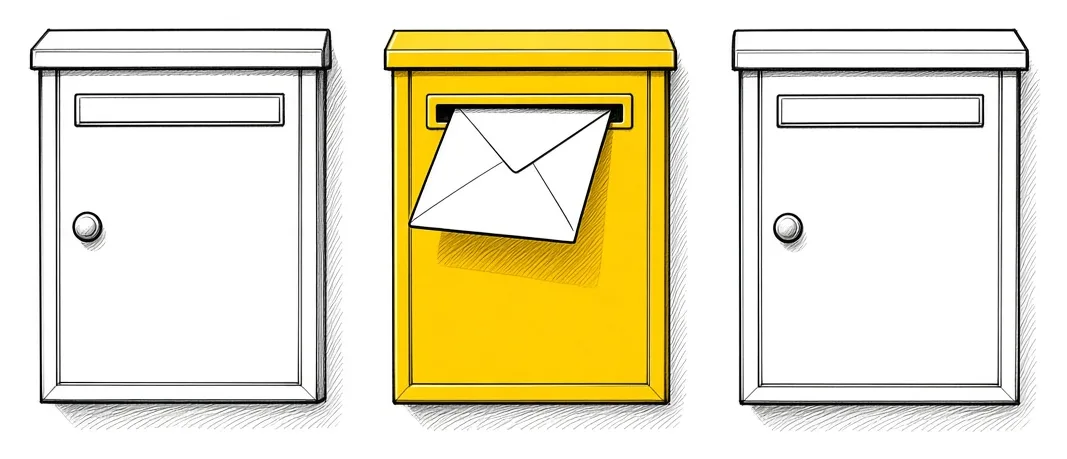
If the platform keeps sending it to your inbox, you can set up a rule within your email inbox to forward that notification email to the new address.
Every detail in one email
The first step is to read what the notification email contains today. The booking contact, their contact details, the dates, how many places were reserved: those are the pieces of information you can pick out.
If the platform can configure the notification email to carry all the details you need, in one single email, that makes the automation easy to build. It is worth asking them to confirm that first.
The email arrives, and the record is created
The start of the automation is when that address receives a notification email. That is the trigger.
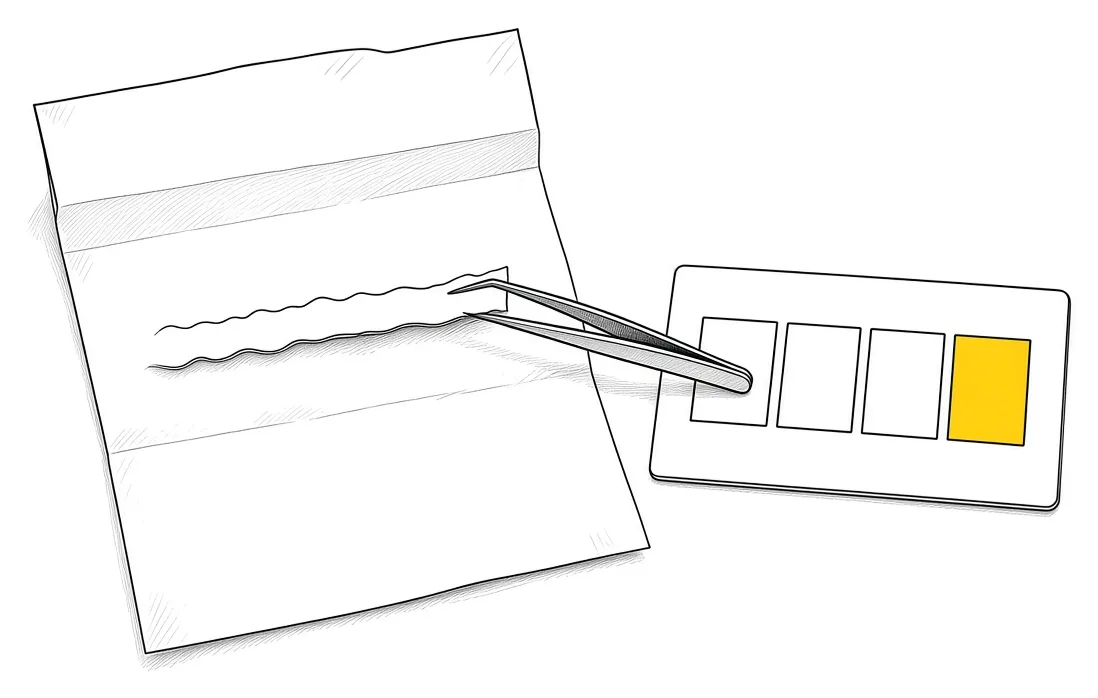
It reads the contents of the email. You set it to pick specific fields, such as the booking contact and their details. It uses those to create a record within your CRM. Our post on keeping one source of truth in your CRM covers why the record belongs there.
If you are still picking the CRM: Try Zoho CRM.
One person sets up the forwarding
If two of you get the same notification and both of you forward it, the address gets two emails for the same record. That means the trigger fires twice.
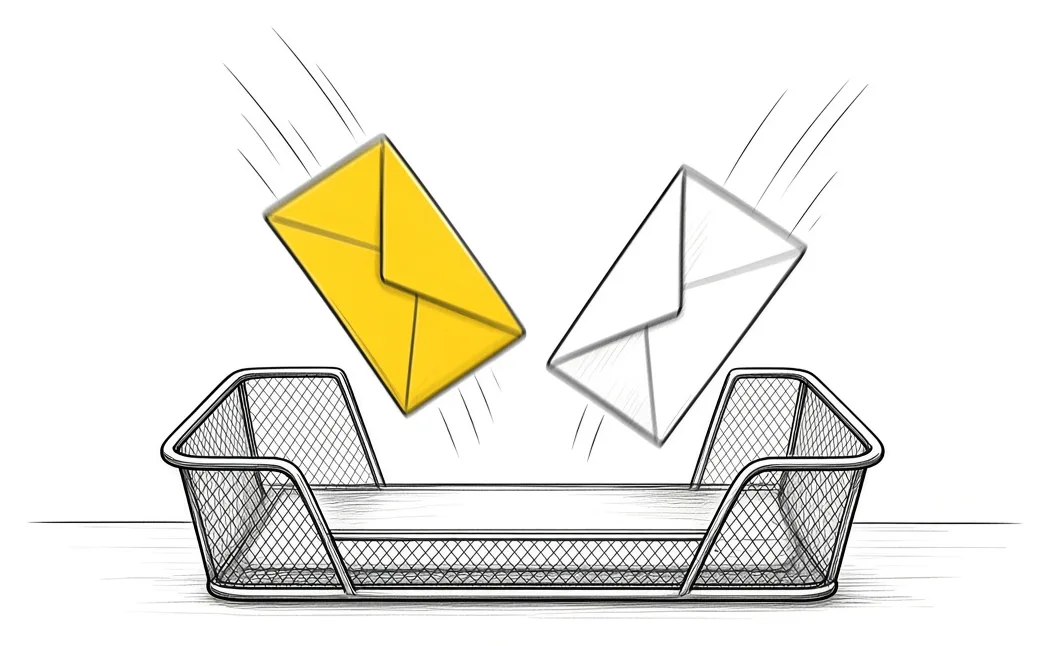
As long as you both get the same email, one person has to set up the forwarding.
When details are missing
Sometimes the notification email is missing some details. The workaround is to pass the information it does have and create the record inside the CRM, and the person on the other end goes in and adds any information that is missing.

Who manages the communication
Website and booking platforms send a notification every time somebody submits a form or does something. The question becomes: whose responsibility is it going to be to manage that communication? That decision comes before the build. Our post on bookings on your website covers what happens on the site side.
Takeaways and next steps
- Your platform offers a set of triggers, and email may be the only one that applies.
- A separate address takes the notifications.
- An inbox rule can forward the notification to it.
- The platform can put every detail you need in one email.
- The automation picks the fields and creates the CRM record.
- One person sets up the forwarding.
- A person fills in what the email leaves out.
Common mistakes with email triggers
1. Two people forward the same notification.
Why it fails: The trigger fires twice and you get two emails for one record.
Better approach: One person sets up the forwarding.
2. Building before reading what the email contains.
Why it fails: The fields you need are missing.
Better approach: Every detail in a single email, confirmed with the platform first.
3. Ownership of the notifications is left open.
Why it fails: Sign-ups get missed or handled twice.
Better approach: One named person is responsible for the communication.
Frequently asked questions
Why use an email as a trigger?
On some platforms, email is the only trigger that applies. The notification email you already get can start the automation.
Why a separate email address?
The automation watches that one address, so only notifications land there and each one starts the flow.
What does the automation do with the email?
It reads the contents, picks the fields you set, such as the contact and dates, and creates a record in your CRM.
What if the email is missing details?
The record is created with what you have, and a person adds the missing information by hand.
Why should only one person forward it?
If two people forward the same notification, the trigger fires twice for the same record.
Glossary
- Trigger
- The event that starts an automation, here the arrival of a notification email.
- Notification email
- The automatic email a platform sends when somebody signs up, books or submits a form.
- Inbox rule
- A setting in your email that forwards or files messages automatically.
- Field
- One piece of information in a record, such as a name, an email or a date.

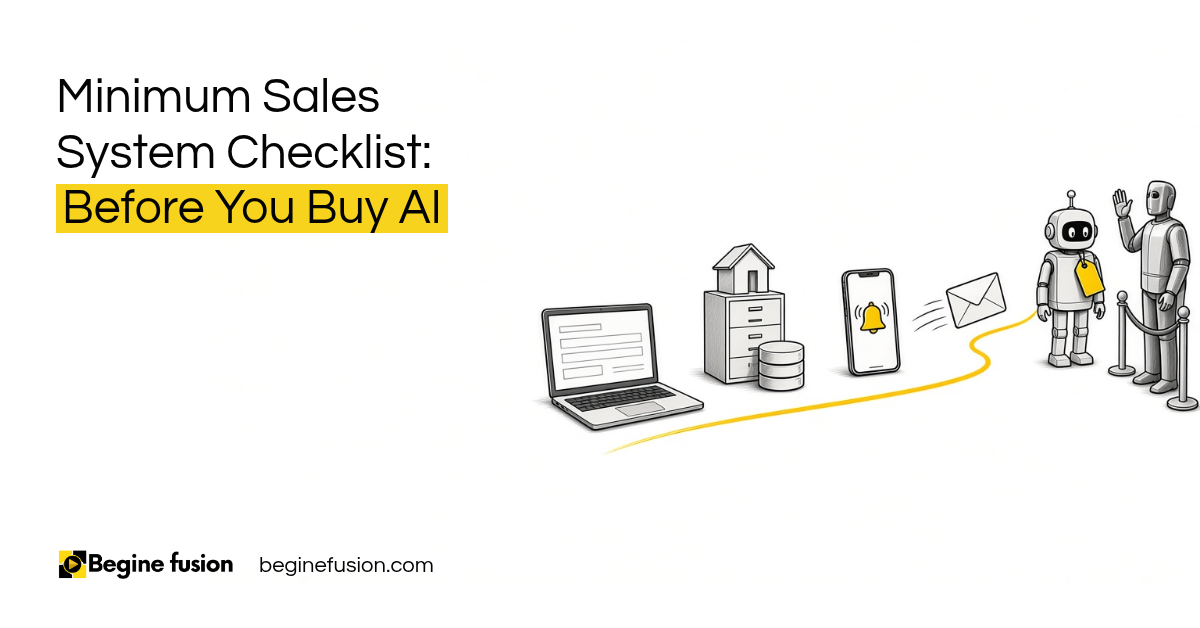 Minimum Sales System Checklist: Before You Buy AI
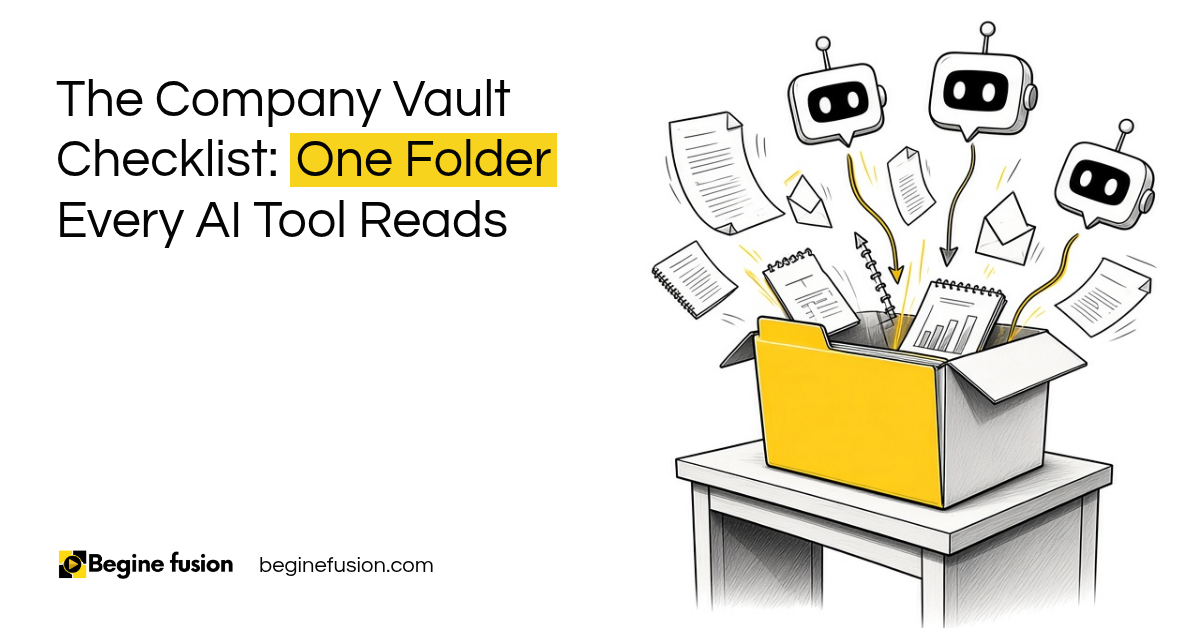 The Company Vault Checklist: One Folder Every AI Tool Reads